Skip to content

How to Reset Timezone on UC Merced Calendar

Some students notice that the appointment or event they scheduled with Study Abroad team appears at the incorrect time on their UC Merced calendar. This is usually due to having the wrong time zone selected in their calendar. Here is how one can change or check the selected time zone in the UC Merced calendar:

1. Log into your UC Merced email.

2. Go into the settings menu using the gear icon in the upper-right corner:
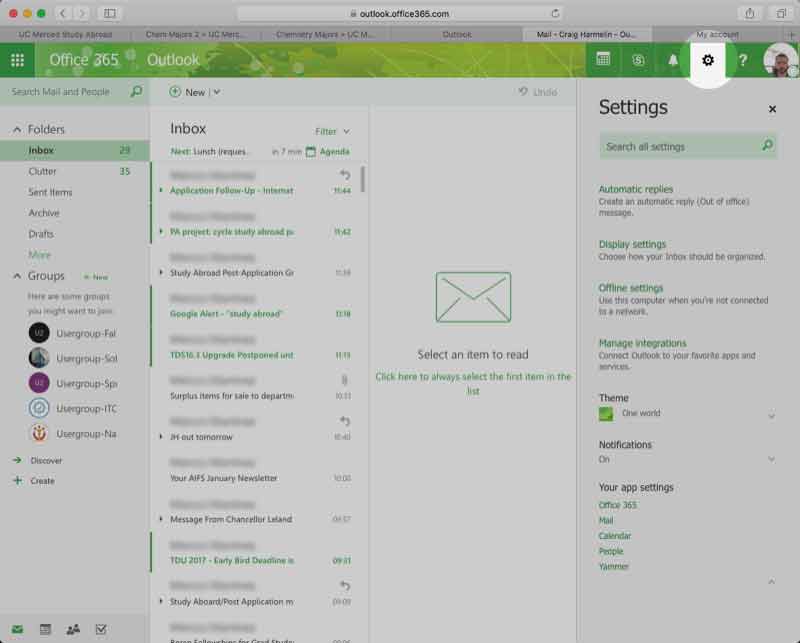
Step 1 (2017 instructions)

3. Click on Office 365 in the "Your app settings" sub-menu on the right-hand side:
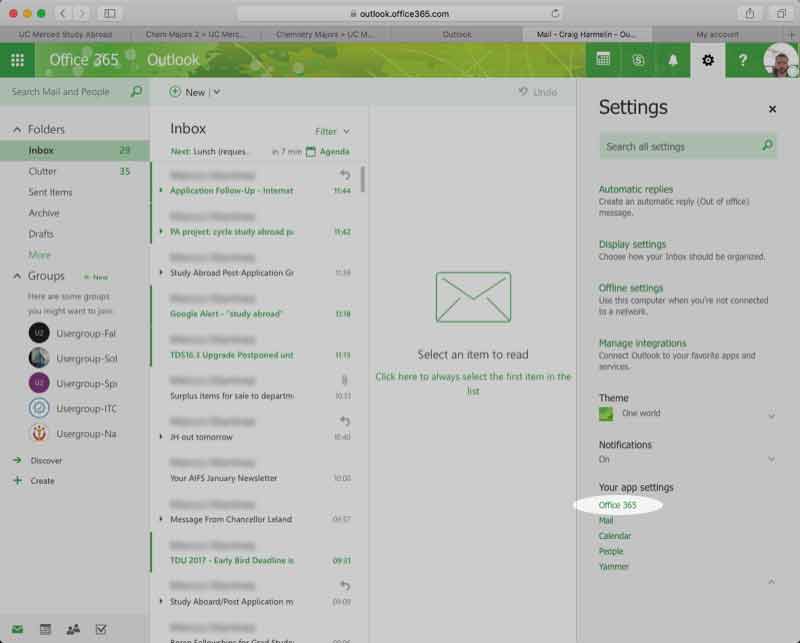
Step 3 (2017 instructions)

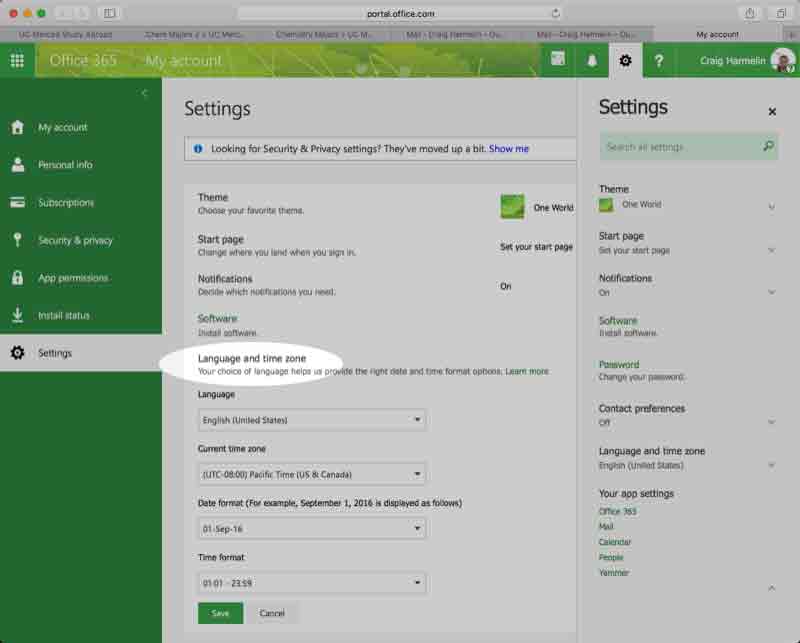
4. Click "Language and time zone":

Step 3 (2017 instructions)

5. Click on the menu for "Current time zone" and select UTC-8:00, Pacific Time:
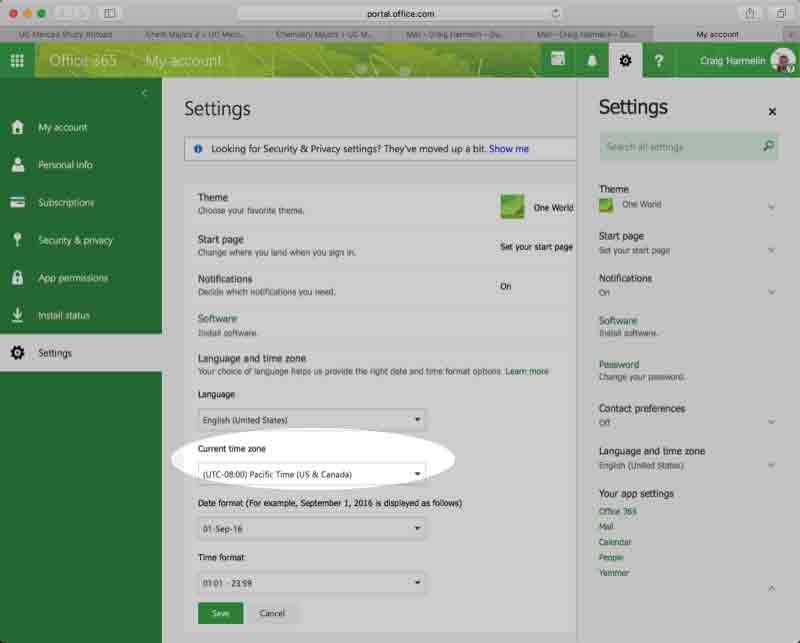
Step 4 (2017 instructions)

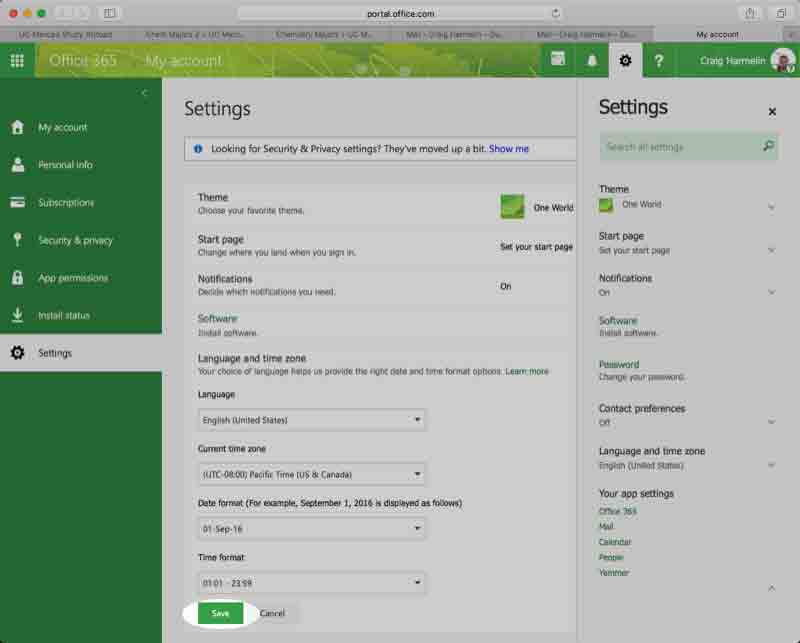
6. Click the "save" button:

Step 5 (2017 instructions)

Winter Office Hours Adjustments

Kolligian Library 101 Front Desk Public Hours

  • Monday, December 22, 2025: 10:00AM – 12:00PM, 1:00 – 4:00PM
  • Tuesday, December 23, 2025: 10:00AM – 12:00PM only
  • Wednesday, December 24, 2025 – Thursday, January 1, 2026: University closure
  • Friday, January 2, 2026: Front office closed
  • Monday, January 5 – Thursday, January 15: 10:00AM – 12:00PM, 1:00 – 3:00PM
  • Friday, January 16, 2026: Front office closed for new international student orientation activities
  • Tuesday, January 20, 2026: Regular hours resume

*Staff will still be available for virtual appointments and drop-ins unless otherwise noted.